

I’m not going to lie: Conducting an in-depth SEO audit is a major deal.
And, as an SEO consultant, there are a few sweeter words than, “Your audit looks great! When can we bring you onboard?”
Even if you haven’t been actively looking for a new gig, knowing your SEO audit nailed it is a huge ego boost.
But, are you terrified to start? Is this your first SEO audit? Or, maybe you just don’t know where to begin?
Sending a fantastic SEO audit to a potential client puts you in the best possible place.
So take your time. Remember: Your primary goal is to add value to your customer with your site recommendations for both the short-term and the long-term.
In this column, I’ve put together the need-to-know steps for conducting an SEO audit and a little insight into the first phase of my processes when I first get a new client. It’s broken down into sections below. If you feel like you have a good grasp on a particular section, feel free to jump to the next.
When Should I Perform an SEO Audit?
After a potential client sends me an email expressing interest in working together and they answer my survey, we set-up an intro call (Skype or Google Hangouts is preferred).
Before the call, I do my own mini quick SEO audit (I invest at least one hour to manually researching) based on their survey answers to become familiar with their market landscape. It’s like dating someone you’ve never met.
You’re obviously going to stalk them on Facebook, Twitter, Instagram, and all other channels that are public #soIcreep.
Here’s an example of what my survey looks like:
Here are some key questions you’ll want to ask the client during the first meeting:
Sujan Patel also has some great recommendations on questions to ask a new SEO client.
After the call, if I feel we’re a good match, I’ll send over my formal proposal and contract (thank you HelloSign for making this an easy process for me!).
To begin, I always like to offer my clients the first month as a trial period to make sure we vibe.
This gives both the client and I a chance to become friends first before dating. During this month, I’ll take my time to conduct an in-depth SEO audit.
These SEO audits can take me anywhere from 40 hours to 60 hours depending on the size of the website. These audits are bucketed into three separate parts and presented with Google Slides.
After that first month, if the client likes my work, we’ll begin implementing the recommendations from the SEO audit. And going forward, I’ll perform a mini-audit monthly and an in-depth audit quarterly.
To recap, I perform an SEO audit for my clients:
What You Need from a Client Before an SEO Audit
When a client and I start working together, I’ll share a Google Doc with them requesting a list of passwords and vendors.
This includes:
Tools for SEO Audit
Conducting a Technical SEO Audit
Tools needed for technical SEO audit:
Step 1: Add Site to DeepCrawl and Screaming Frog
Tools:
What to Look for When Using DeepCrawl
The first thing I do is add my client’s site to DeepCrawl. Depending on the size of your client’s site, the crawl may take a day or two to get the results back.
Once you get your DeepCrawl results back, here are the things I look for:
Check out the “Duplicate Pages” report to locate duplicate content.
If duplicate content is identified, I’ll make this a top priority in my recommendations to the client to rewrite these pages, and in the meantime, I’ll add the <meta name=”robots” content=”noindex, nofollow”> tag to the duplicate pages.
Common duplicate content errors you’ll discover:
How to fix:
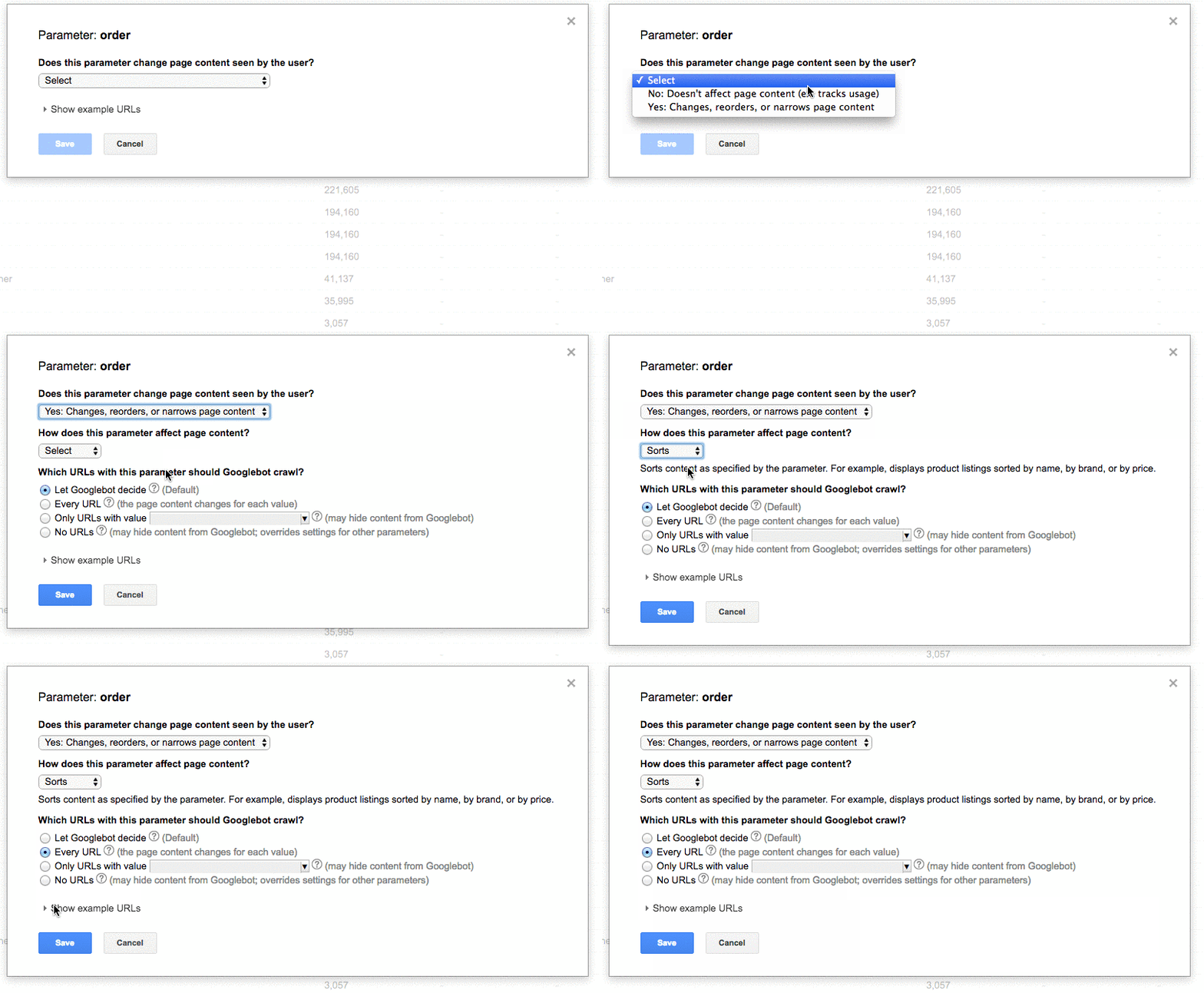
Here’s an example of a duplicate content issue I had with a client of mine. As you can see below, they had URL parameters without the canonical tag.
These are the steps I took to fix the issue:
There are two reports to check out:
In this example below, I was able to find that a client had reciprocal pagination tags using DeepCrawl:
How to fix:
Max Redirections
Review the “Max Redirections” report to see all the pages that redirect more than 4 times. John Mueller mentioned in 2015 that Google can stop following redirects if there are more than five.
While some people refer to these crawl errors as eating up the “crawl budget,” Gary Illyes refers to this as “host load.” It’s important to make sure your pages render properly because you want your host load to be used efficiently.
Here’s a brief overview of the response codes you might see:
How to fix:
What to Look for When Using Screaming Frog
The second thing I do when I get a new client site is to add their URL to Screaming Frog.
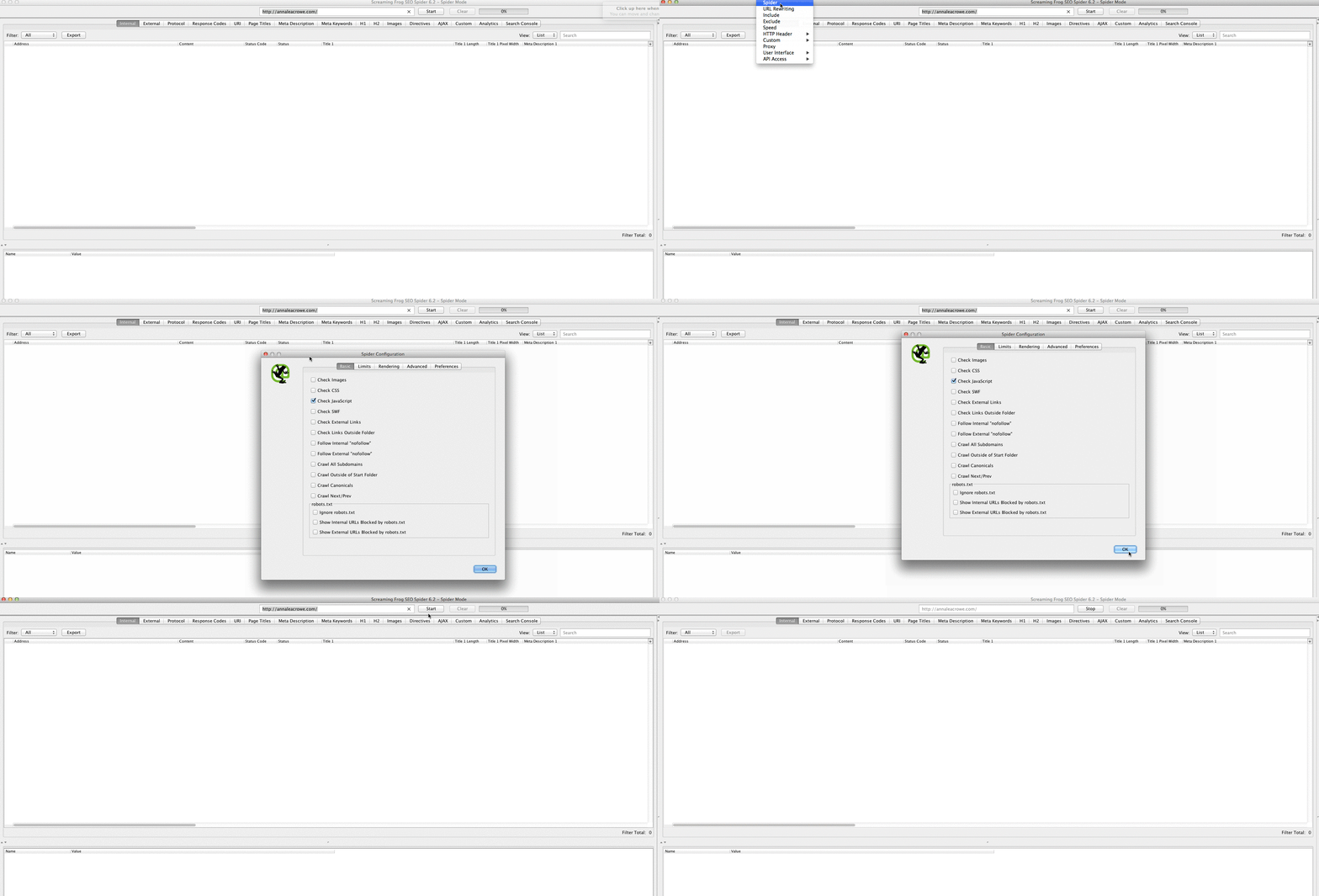
Depending on the size of your client’s site, I may configure the settings to crawl specific areas of the site at a time.
Here is what my Screaming Frog spider configurations look like:
You can do this in your spider settings or by excluding areas of the site.
Once you get your Screaming Frog results back, here are the things I look for:
Google Analytics Code
Screaming Frog can help you identify what pages are missing the Google Analytics code (UA-1234568-9). To find the missing Google Analytics code, follow these steps:
How to fix:
Google Tag Manager
Screaming Frog can also help you find out what pages are missing the Google Tag Manager snippet with similar steps:
How to fix:
You’ll also want to check if your client’s site is using schema markup on their site. Schema or structured data helps search engines understand what a page is on the site.
To check for schema markup in Screaming Frog, follow these steps:
You want to determine how many pages are being indexed for your client, follow this in Screaming Frog:
How to fix:
Google announced in 2016 that Chrome will start blocking Flash due to the slow page load times. So, if you’re doing an audit, you want to identify if your new client is using Flash or not.
To do this in Screaming Frog, try this:
How to fix:
Here’s an example of HTML5 code for adding a video:
How to fix:
 Robots.txt
When you’re reviewing a robots.txt for the first time, you want to look to see if anything important is being blocked or disallowed.
For example, if you see this code:
Your client’s website is blocked from all web crawlers.
But, if you have something like Zappos robots.txt file, you should be good to go.
They are only blocking what they do not want web crawlers to locate. This content that is being blocked is not relevant or useful to the web crawler.
How to fix:
Crawl Errors
I use DeepCrawl, Screaming Frog, and Google and Bing webmaster tools to find and cross-check my client’s crawl errors.
To find your crawl errors in Screaming Frog, follow these steps:
How to fix:
Redirect Chains
Redirect chains not only cause poor user experience, but it slows down page speed, conversion rates drop, and any link love you may have received before is lost.
Fixing redirect chains is a quick win for any company.
How to fix:
Internal & External Links
When a user clicks on a link to your site and gets a 404 error, it’s not a good user experience.
And, it doesn’t help your search engines like you any better either.
To find my broken internal and external links I use Integrity for Mac. You can also use Xenu Sleuth if you’re a PC user.
I’ll also show you how to find these internal and external links in Screaming Frog and DeepCrawl if you’re using that software.
How to fix:
Every time you take on a new client, you want to review their URL format. What am I looking for in the URLs?
How to fix:
Step 2: Review Google Search Console and Bing Webmaster Tools.
Tools:
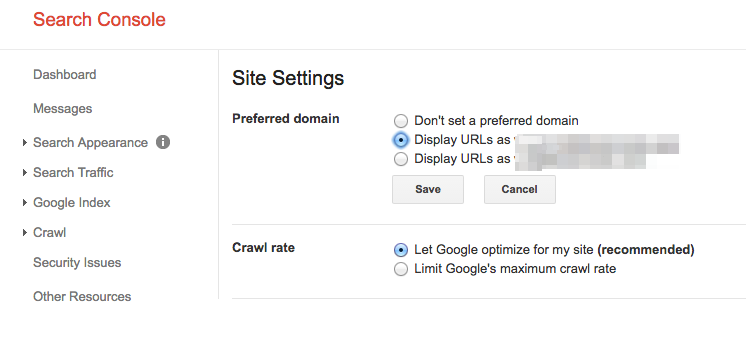
Set a Preferred Domain
Since the Panda update, it’s beneficial to clarify to the search engines the preferred domain. It also helps make sure all your links are giving one site the extra love instead of being spread across two sites.
How to fix:
With the announcement that Penguin is real-time, it’s vital that your client’s backlinks meet Google’s standards.
If you notice a large chunk of backlinks coming to your client’s site from one page on a website, you’ll want to take the necessary steps to clean it up, and FAST!
How to fix:
Here’s an example of what my disavow file looks like:
As an SEO consultant, it’s my job to start to learn the market landscape of my client. I need to know who their target audience is, what they are searching for, and how they are searching. To start, I take a look at the keyword search terms they are already getting traffic from.
Sitemaps are essential to get search engines to crawl your client’s website. It speaks their language. When creating sitemaps, there are a few things to know:
How to fix:
To check this in Google Search Console, go to Coverage > Details.
To check this in Bing Webmaster Tools, go to Reports & Data > Crawl Information.
How to fix:
Structured Data
As mentioned above in the schema section of Screaming Frog, you can review your client’s schema markup in Google Search Console.
Use the individual rich results status report in Google Search Console. (Note: The structured data report is no longer available).
This will help you determine what pages have structured data errors that you’ll need to fix down the road.
How to fix:
Step 3: Review Google Analytics
Tools:
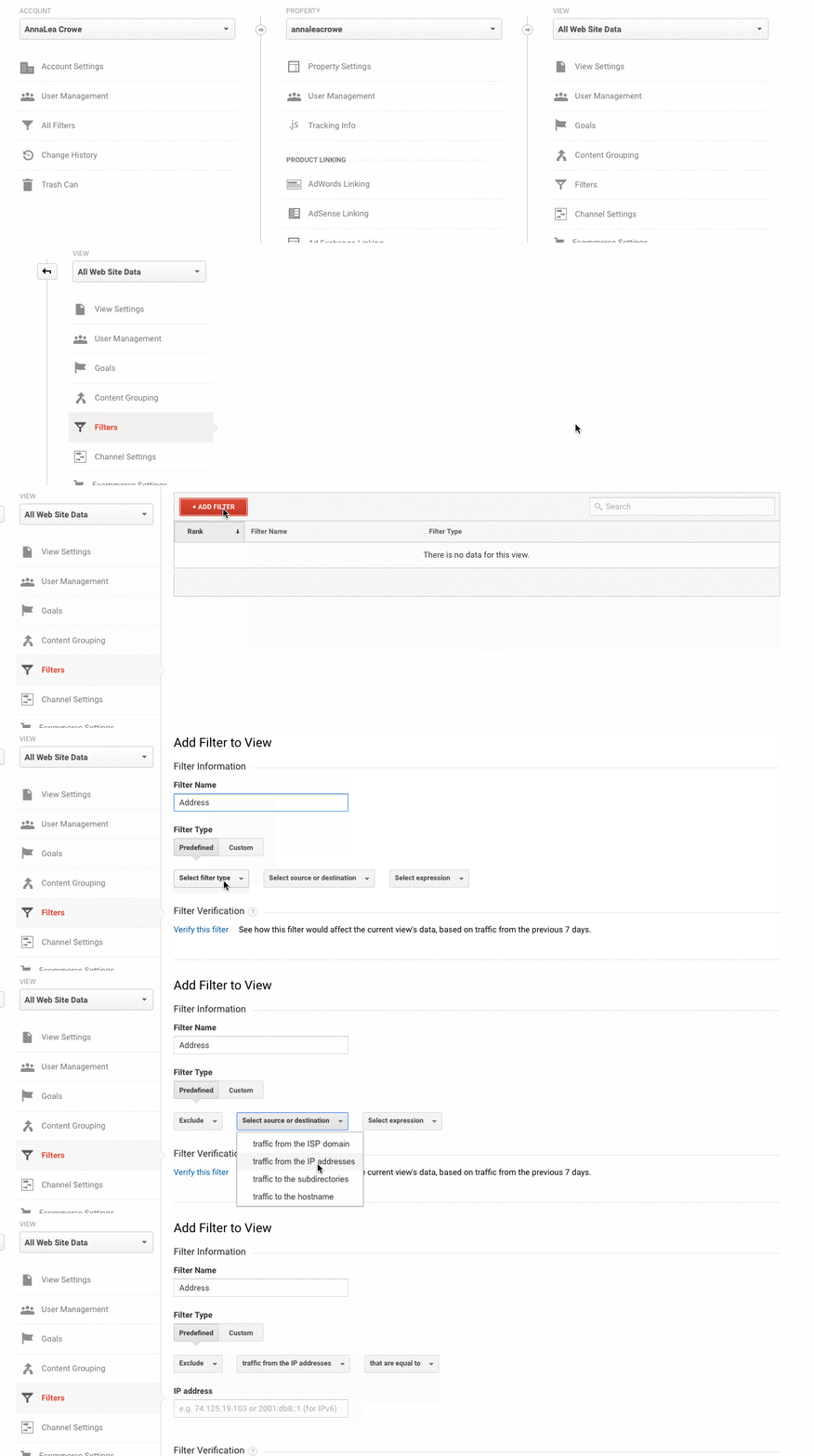
When I first get a new client, I set up 3 different views in Google Analytics.
These different views give me the flexibility to make changes without affecting the data.
How to fix:
How to fix:
 Tracking Code
You can manually check the source code, or you can use my Screaming Frog technique from above.
If the code is there, you’ll want to track that it’s firing real-time.
How to fix:
If you had a chance to play around in Google Search Console, you probably noticed the Coverage section.
When I’m auditing a client, I’ll review their indexing in Google Search Console compared to Google Analytics. Here’s how:
How to fix:
Campaign Tagging
The last thing you’ll want to check in Google Analytics is if your client is using campaign tagging correctly. You don’t want to not get credit for the work you’re doing because you forgot about campaign tagging.
How to fix:
You can use Google Analytics to gain insight into potential keyword gems for your client. To find keywords in Google Analytics, follow these steps:
Go to Google Analytics > Behavior > Site Search > Search Terms. This will give you a view of what customers are searching for on the website.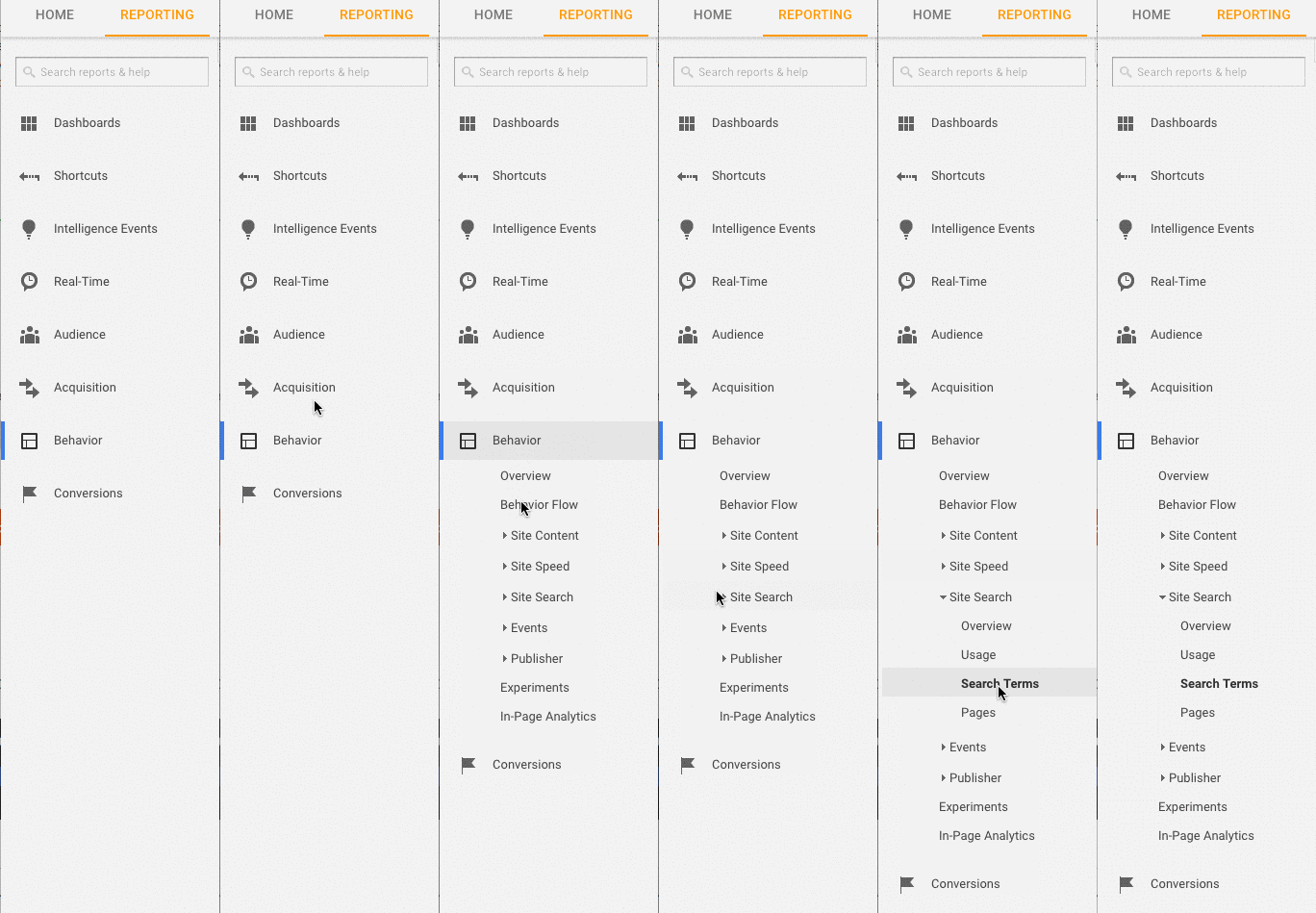
Next, I’ll use those search terms to create a New Segment in Google Analytics to see what pages on the site are already ranking for that particular keyword term.
Step 4: Manual Check
One Version of Your Client’s Site is Searchable
Check all the different ways you could search for a website. For example:
As Highlander would say, “there can be only one” website that is searchable.
How to fix: Use a 301 redirect for all URLs that are not the primary site to the canonical site.
Conduct a manual search in Google and Bing to determine how many pages are being indexed by Google. This number isn’t always accurate with your Google Analytics and Google Search Console data, but it should give you a rough estimate.
To check, do the following:
How to fix:
I’ll run a quick check to see if the top pages are being cached by Google. Google uses these cached pages to connect your content with search queries.
To check if Google is caching your client’s pages, do this:
http://webcache.googleusercontent.com/search?q=cache:https://www.searchenginejournal.com/pubcon-day-3-women-in-digital-amazon-analytics/176005/
Make sure to toggle over to the Text-only version.
You can also check this in Wayback Machine.
How to fix:
While this may get a little technical for some, it’s vital to your SEO success to check the hosting software associated to your client’s website. Hosting can harm SEO and all your hard work will be for nothing.
You’ll need access to your client’s server to manually check any issues. The most common hosting issues I see are having the wrong TLD and slow site speed.
How to fix:
Core Web Vitals Audit
Core Web Vitals is a collection of three metrics that are representative of a website’s user experience. They are important because Google is updating their algorithms in the Spring of 2021 to incorporate Core Web Vitals as a ranking factor.
Although the ranking factor is expected to be a small factor, it’s still important to audit the Core Web Vitals scores and identify areas for improvement.
Why Is It Important to Include Core Web Vitals in Your Audit?
Improving Core Web Vitals scores will not only help search ranking but perhaps more importantly it may pay off with more conversions and earnings.
Improvements to speed and page performance are associated with higher sales, traffic, and ad clicks.
Upgrading the web hosting and installing a new plugin may improve page speed but will have little (if any) effect on Core Web Vitals.
The measurement is done at the point where someone is literally downloading your site on their mobile phone.
That means the bottleneck is at their Internet connection and the mobile device. A fast server will not speed up a slow Internet connection on a budget mobile phone.
Similarly, because many of the solutions involve changing the code in a template or the core files of the content management system itself, a page speed plugin will be of very little use.
There are many resources to help understand solutions. But most solutions require the assistance of a developer who feels comfortable updating and changing core files in your content management system.
Fixing Core Web Vitals issues can be difficult. WordPress, Drupal, and other content management systems (CMS) were not built to score well for Core Web Vitals.
It is important to note that the process for improving Core Web Vitals involves changing the coding at the core of WordPress and other CMS.
Essentially, improving Core Web Vitals requires making a website do something that it was never intended to do when the developers created a theme or CMS.
The purpose of a Core Web Vitals audit is to identify what needs fixing and handing that information over to a developer who can then make the necessary changes.
What Are Core Web Vitals?
Core Web Vitals are consist of three metrics that collectively identify how fast the most important part of your page loads, how fast a user can interact with the page (example: click a button), and how fast it takes for the web page to become stable without page elements shifting around.
There are:
There are two kinds of scores for the Core Web Vitals:
Lab data is what is generated when you run a page through Google Lighthouse or in PageSpeed Insights.
Lab data consists of scores generated through a simulated device and Internet connection. The purpose is to give the person working on the site an idea of what parts of the Core Web Vitals need improvement.
The value of a tool like PageSpeed Insights is that it identifies specific code and page elements that are causing a page to score poorly.
Field Data
Field Data are actual Core Web Vitals scores that have been collected by Google Chrome browser for the Chrome User Experience Report (also known as CrUX).
The Field data is available in Google Search Console under the Enhancements tab via the link labeled Core Web Vitals (field data can be accessed via this link, too) https://search.google.com/search-console/core-web-vitals.
The field data reported in Google Search Console comes from visited pages that have had a minimum amount of visits and measurements. If Google doesn’t receive enough scores then Google Search Console will not report that score.
Screaming Frog for Core Web Vitals Audit
Screaming Frog version 14.2 now has the ability to display a pass or fail Core Web Vitals assessment. You need to connect Screaming Frog to the PageSpeed Insights API (get an API key here) via a key.
To register your Page Speed Insights API key with Screaming Frog, first navigate to Configuration > API Access > PageSpeed Insights
There, you will see a place to enter your API key and connect it to the service.
In the same PageSpeed Insights popup, you can also select the Metrics tab and tick off the boxes indicating what metrics you’d like to have reported.
Be sure to select Mobile for the device as that’s the metric that matters for ranking purposes.
If you select the Opportunities tab, after the crawl Screaming Frog will show you a list of different kinds of improvements (like defer offscreen images, remove unused CSS, etc.).
Note Before Crawling
There is generally no need to crawl an entire site and produce an exhaustive page-by-page accounting of what’s wrong with every single page of the website.
Before crawling, you may want to consider crawling a representative set of pages. To do this, first select a group of pages that represent the types of pages common to each section or category of the website. Create a spreadsheet, text file list, or manually paste the URLs in using the Upload tab in Screaming Frog.
Most sites contained pages and posts created with similar page structure and content. For example, all the pages in a “news” category are going to be fairly similar, pages in a “reviews” category are also going to be similar to each other.
You can save time by crawling a representative group of pages in order to identify issues common across individual categories as well as problems common to all pages sitewide that need fixing.
Because of those similarities, the issues discovered are going to be similar. It may only be necessary to crawl a handful of representative pages from each type of category in order to identify what kinds of issues are specific to each of those sections.
The kinds of things that are being fixed are typically sitewide issues that are common across the entire site, like unused CSS that is loaded from every page or Cumulative Layout Shift caused by an ad unit located in the left-hand area of the web pages.
Because modern websites are templated, the fixes will happen at the template level or with custom coding in the stylesheet, etc.
Crawl the Site With Screaming Frog
Once the URLs are fully crawled, you can click on the PageSpeed tab and read all the recommendations and view the pass/fail notations for the various metrics.
Zoom In on URL Opportunities
A useful feature in the Screaming Frog Core Web Vitals Audit is the ability to select a URL from the list of URLs in the top pane and then see the opportunities for improvement in the bottom pane of the Screaming Frog display screen.
Below is a screenshot of the bottom screen, with an opportunity selected and the details of that improvement opportunity in the right-hand pane.
Official Google Tool
Google has published a tool that can provide an audit. It’s located here: https://web.dev/measure/
Insert a URL for an overview of the page performance. If you’re signed in Google will track the page for you over time. Clicking the View Report link will open a new page containing a report detailing what is wrong and links to guides that show how to fix each problem.
Featured Image: Paulo Bobita
All screenshots taken by author
This content was originally published here.
Recent Comments